
Simple workflow
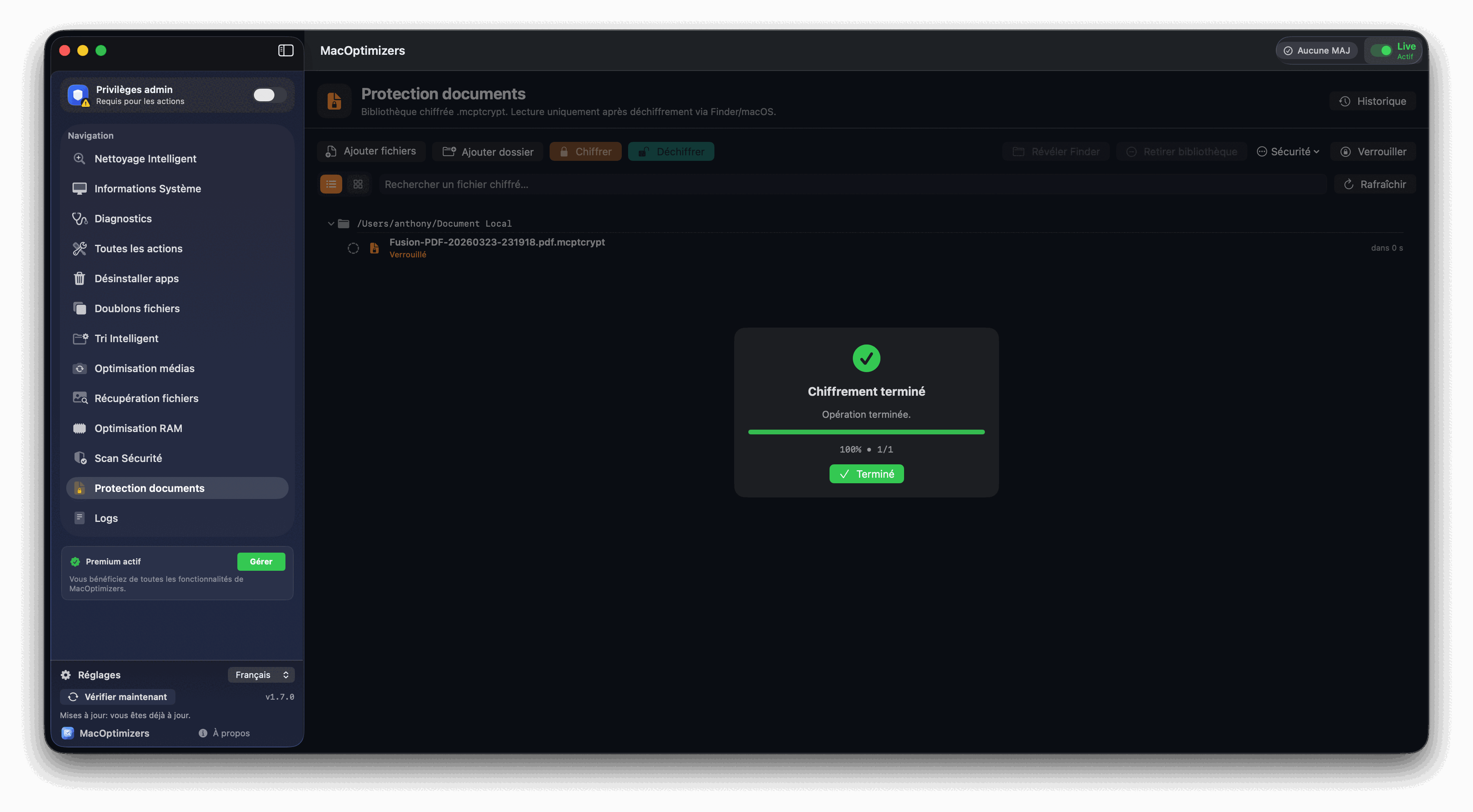
- Add files or folders to the dedicated library.
- Encrypt items with your password so they become unreadable.
- Decrypt only when you need to open a file.
- Re-encrypt after use to lock access again.
Privacy guide
Some files should not be readable by a curious person or malicious software. The Document Protection module lets you encrypt those files and decrypt only when needed.
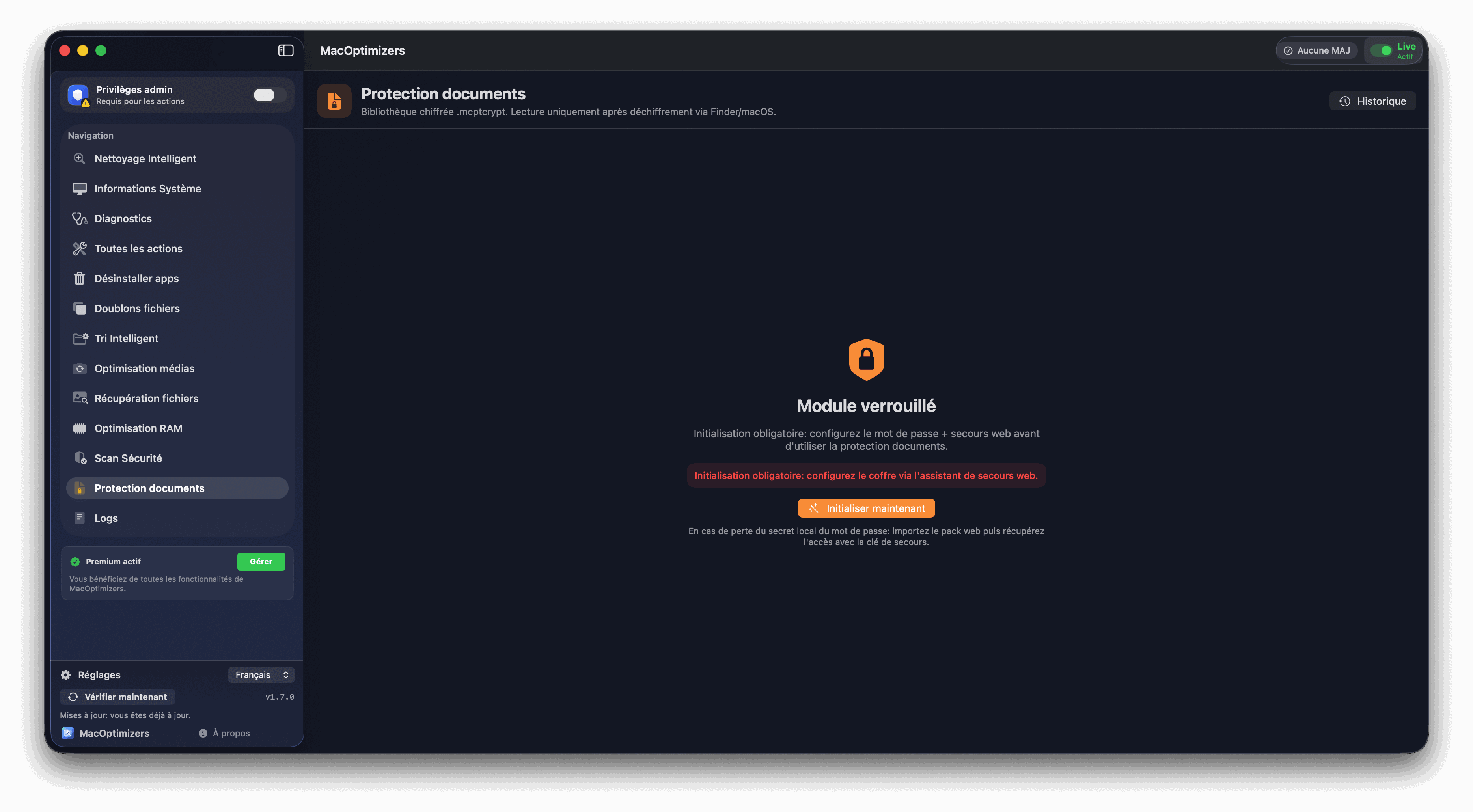
An encrypted file cannot be read until unlocked with your password.
You decide exactly when a file is readable and when it should be locked again.
The library shows protected items and their current lock state.
Useful for personal, admin, finance, and business documents.
Combine document privacy with regular security hygiene.
Read guideRestore files accidentally deleted.
Read guideRemove unnecessary or suspicious software cleanly.
Read guideStep-by-step procedure in the documentation.
Read docs