
Optimization Guide

Compress, convert, and optimize media files on Mac

Learn how to shrink file size on Mac, convert formats, process PDFs, and extract audio/video with full quality and output control.
Available functions

  • Compress images, videos, audio and PDF.
  • Convert file by file or in bulk.
  • Merge PDF and compress the final PDF.
  • Extract local audio and video/audio from URL.
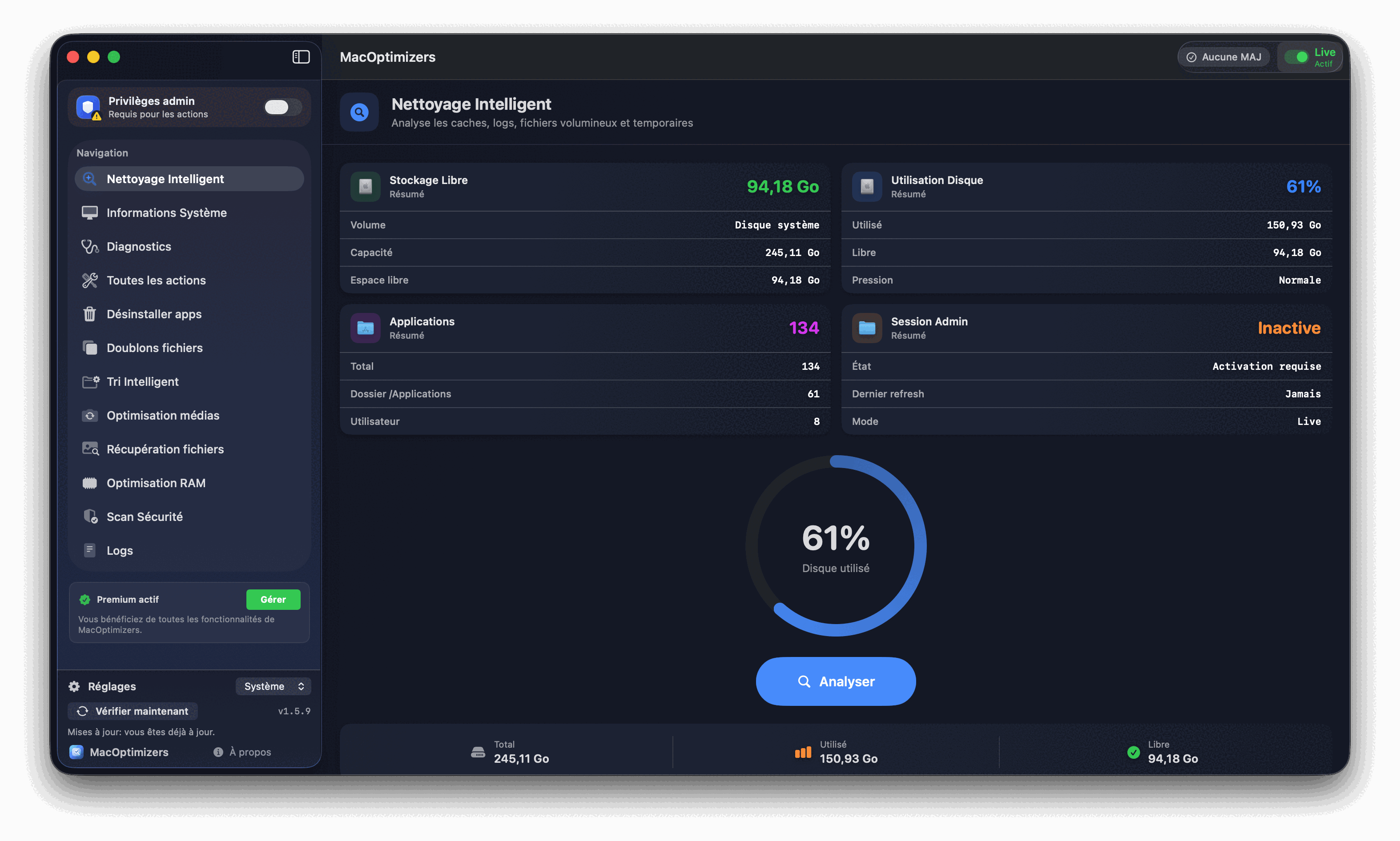
MacOptimizers interface for file optimization

Recommended steps

  1. Choose the tab adapted to your objective (Compress, Convert, Processing PDF, Extract audio, Extract video URL).
  2. Add your files then adjust target format and quality.
  3. Open the advanced settings if you need to fine-tune codec, bitrate or resolution.
  4. Launch the queue and track progress overall and per file.
  5. Check the final result and the weight gain obtained.

Media Optimization FAQ

Can Smart Scan convert files?

No. Smart Scan mode is reserved for space-saving compression. The conversion is done in Manual mode.

Can I process mixed image/video/audio/PDF batches?

Yes. The module handles each media type in dedicated blocks and supports both bulk and per-file processing.

Where can I access all advanced settings?

Click the gear icon in each processing tab to open quality, format, and output settings.

Related guides

Free macOS cleanup

Reclaim space before media optimization.

Read

Mac disk full

Priority action plan to free up storage.

Read

Sorting Mac files

Organize your files before mass conversion.

Read

Module Documentation

Complete procedure screen by screen in the documentation.

Read