
Troubleshooting Guide

Mac diagnostics tool: identify bottlenecks before you fix

Strong diagnostics help you quickly fix the real bottlenecks: CPU overload, RAM pressure, low storage, or unstable services.
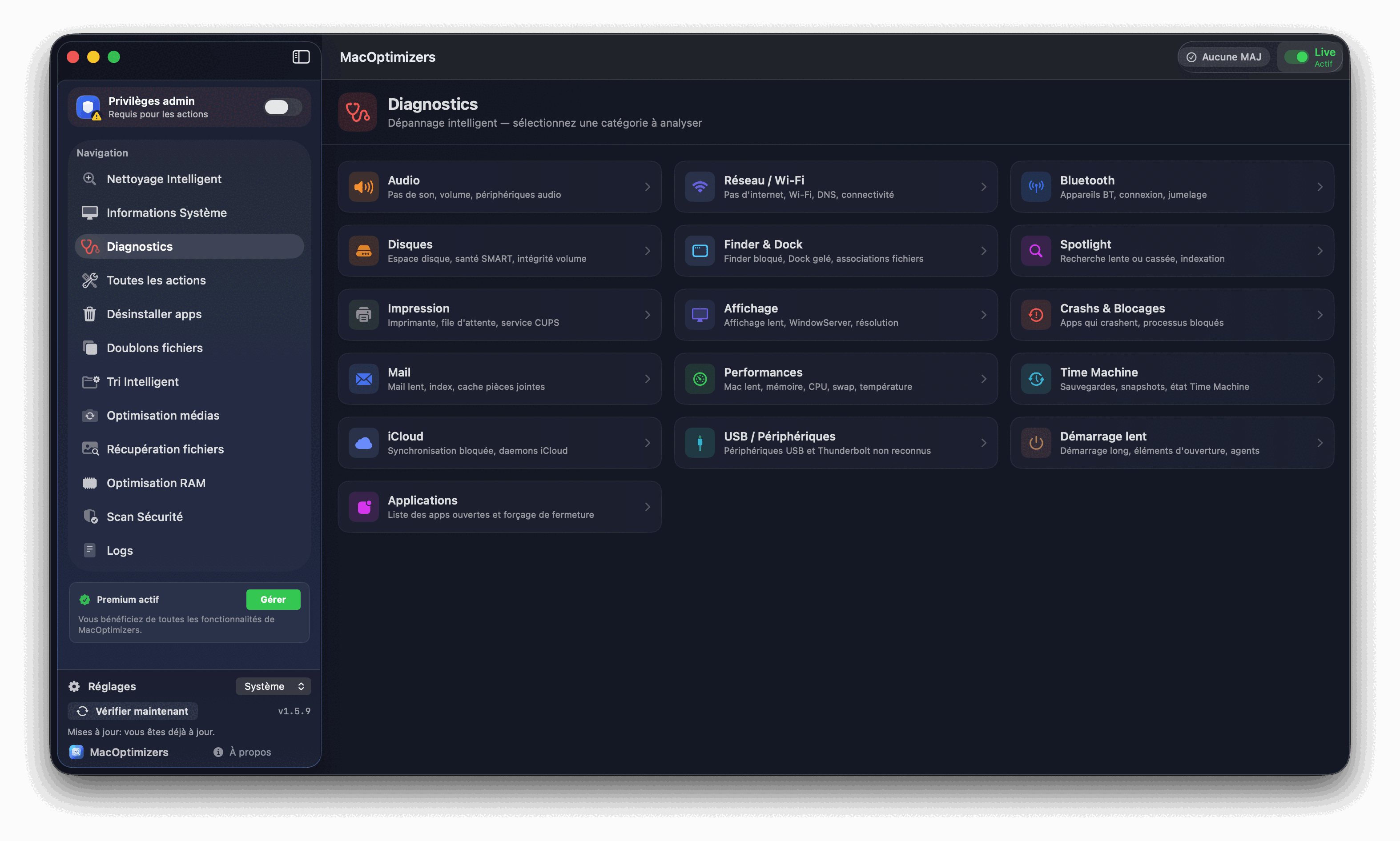
What to check

  • Load CPU per process.
  • Memory pressure and RAM usage.
  • Free disk space and I/O activity.
  • Network status, Wi-Fi and system services.
Diagnosing macOS

Recommended steps

  1. Capture the cold system state.
  2. Repeat the measurement while slow.
  3. Apply the fixes one by one.
  4. Compare before/after to validate.

Diagnostics FAQ

Should I close all apps before testing?

Run one test in your real usage conditions, then run a minimal test to compare results.

How long does a diagnostic run take?

A useful first pass generally takes less than 15 minutes.

Related guides

Mac slow after update

Post-update priority actions.

Read

Mac disk full

Check if storage is causing the slowness.

Read

Free cleanup

Free up space safely.

Read

File sorting

Reorganize to avoid chaos.

Read