
Duplicate File Cleanup Guide

Remove duplicate files on Mac without accidentally deleting the wrong copy

Duplicate files accumulate quietly — through iCloud sync conflicts, repeated downloads, iPhone photo backups, and copy-paste habits that never get cleaned up. This guide walks through how to find them reliably using content-based matching, how to decide which copy to keep, and how to delete in safe batches without regrets.

Where duplicates actually come from

  • iPhone sync generating both HEIC originals and JPEG exports of the same shot.
  • iCloud Drive sync conflicts creating "filename (1).pdf" copies after a merge issue.
  • Downloads folder accumulating repeated installer downloads across macOS updates.
  • Time Machine restores that copy files already present locally.
  • Email attachments saved multiple times from different threads or forwards.
  • Screenshots landing in both Desktop and a project folder after manual copying.
  • Disk images (.dmg) kept alongside the apps they were used to install.
  • Zip archives left on disk alongside the folders they were decompressed into.
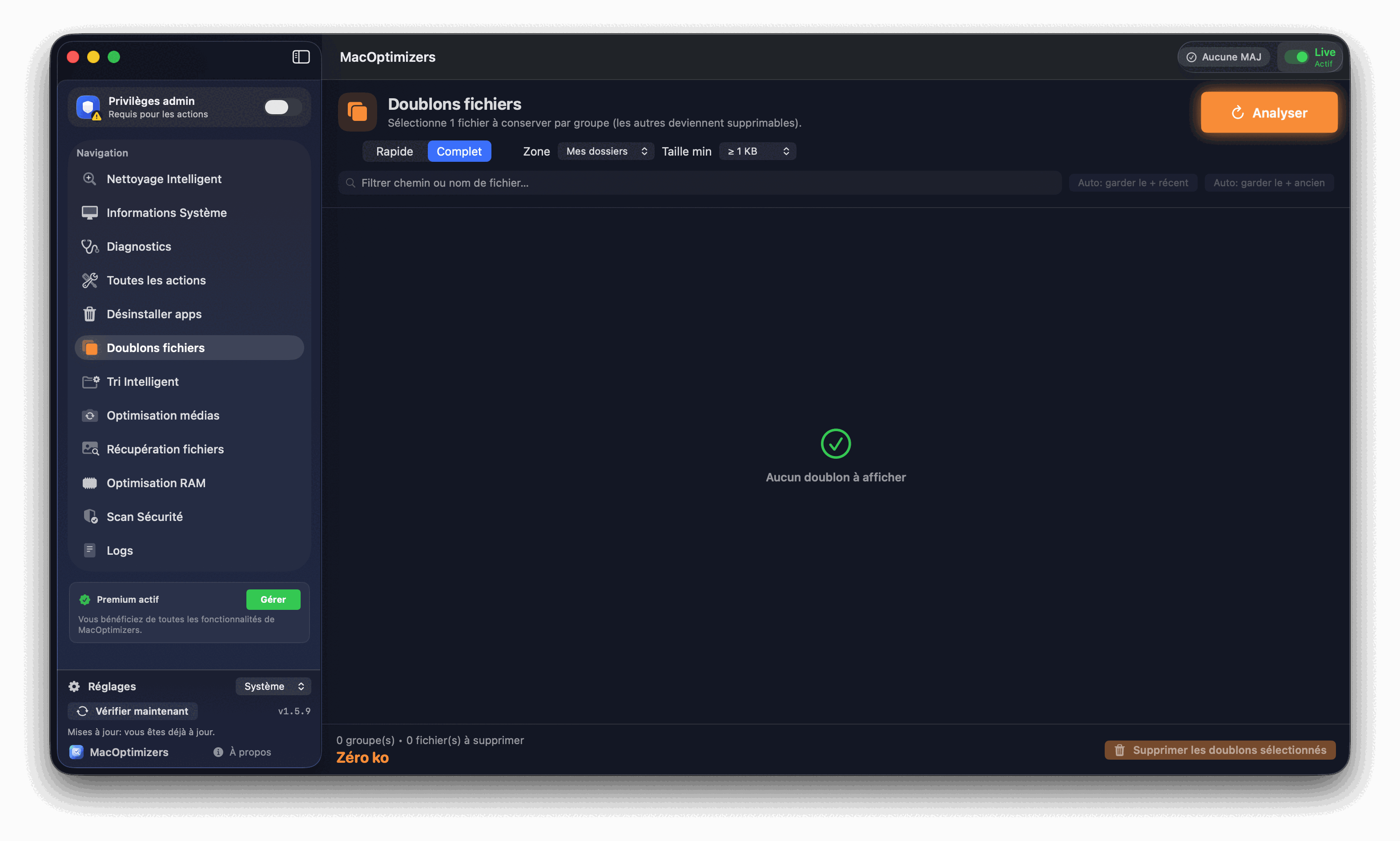
Duplicate file detection in MacOptimizers

Step-by-step duplicate removal

  1. Start with Downloads and Desktop. These two folders generate more duplicates than anywhere else — installer .dmg files downloaded twice, documents saved from email alongside earlier versions, archives sitting next to their extracted contents. Scan them first for fast wins before moving to Documents or Photos.
  2. Use hash-based comparison, not filename matching. A file renamed from "report_v2.pdf" to "report_final_FINAL.pdf" has the same content — a name-only search would miss it entirely. Tools that compute a SHA-256 hash of each file's actual bytes will find true copies regardless of what they're called or where they live.
  3. Review each duplicate group before deleting. For each group of identical files, look at location and modification date side by side. The copy inside a named project folder is usually the keeper; the stray copy buried in Downloads or on the Desktop is the candidate for removal.
  4. Handle photo duplicates separately. Never browse inside your .photoslibrary package and delete files manually — the Photos database will lose track of them without freeing space correctly. Use Photos → Albums → Duplicates (added in macOS Ventura) for image deduplication within your library.
  5. Delete in batches of 20–50 files at a time. Moving hundreds of files to Trash at once makes it harder to spot mistakes. Smaller batches let you pause, glance at what was just moved, and verify before continuing.
  6. Check recovered space after emptying Trash. Open System Settings → General → Storage and confirm the numbers shifted as expected. If they didn't move much, some of the files may have been evicted to iCloud already and weren't counted as local storage anyway.

Not all "duplicates" actually waste space

Understanding what's actually costing you storage helps you focus on the right targets and avoid wasted effort.

  • True duplicate copies — two separate files with identical content in different locations. Each takes up its own space. These are the primary cleanup target.
  • APFS hardlinks — multiple directory names pointing to the same underlying data block on the APFS filesystem. Time Machine relies on these for efficient incremental backups. They don't consume extra space and should not be removed.
  • Near-duplicates — photos or documents that look the same but differ in metadata, edit history, or timestamps. Byte-for-byte they are different files. Only remove these if you've confirmed visually that both versions are truly interchangeable.
  • HEIC and JPEG pairs — some older workflows export both formats from the same original. If cross-platform compatibility isn't a concern, keep the HEIC version (roughly half the file size at equal or better quality) and remove the JPEG.
  • Archive and extracted folder pairs — the .zip and the folder it produced. Once the extraction is confirmed complete and you no longer need to re-share the archive, the original .zip is safe to remove.

Categories to leave alone during deduplication

Deduplication is most powerful when it stays focused on your personal files. These areas should be skipped entirely:

  • Anything inside /System, /Library, or /Applications — these are managed by macOS and app installers.
  • Files inside ~/Library/Application Support — apps store essential preferences and state data here that can look like duplicates but isn't.
  • The Photos Library.photoslibrary package — never browse or delete inside it using Finder.
  • Xcode derived data and project caches — build artifacts can look identical but belong to different build configurations.
  • Virtual machine disk images — these can have snapshot-based structures where deleting the "duplicate" snapshot corrupts the entire VM.

Duplicate File Removal FAQ

Is filename comparison good enough to find duplicates?

No. Files get renamed constantly — "final", "v2", "copy". A SHA-256 hash of the file content is the only reliable way to find true copies regardless of what they're called.

Can I deduplicate photos inside Photos.app?

Don't delete files inside the .photoslibrary package manually — the database loses track of them. Use Photos → Albums → Duplicates in macOS Ventura or later instead.

Do APFS hardlinks waste space?

No. Hardlinks are multiple names pointing to one data block — they don't duplicate the underlying storage. Time Machine uses them for incremental backups. Leave them alone.

How much space can deduplication recover?

Photographers with iPhone sync often find 5–20 GB of duplicate photos. Developers accumulate 3–8 GB in redundant archives. Most users reclaim 1–4 GB from Downloads alone.

What about copies in iCloud Drive?

Check whether each copy is local or evicted to iCloud. A file stored only in iCloud is already off your local drive — deleting it won't free local space and could remove your only copy.

Which guide should I read next?

After deduplication, the Mac disk full guide covers the remaining culprits — system caches, large media files, and app residues — and how to prioritize them.

Related guides

Mac disk full

Find what else is filling your storage beyond duplicates.

Read

Free macOS cleanup

Remove caches, logs, and system residues safely.

Read

File organizer for Mac

Sort and organize what remains after cleanup.

Read

Uninstall Mac apps completely

Remove every file an app leaves behind.

Read