
Complete App Removal Guide

Uninstall Mac apps completely — remove every file they leave behind

Dragging an app to the Trash removes the application bundle — but nothing else. Preferences, caches, application data, background agents, and container files stay on your Mac until you remove them manually. This guide covers where to look, what's safe to delete, and how to fully clean up after any app without guessing.

What drag-to-Trash leaves behind

  • ~/Library/Application Support/[AppName] — databases, user data, project files, plugin caches. Often the largest category, sometimes several gigabytes for creative tools.
  • ~/Library/Preferences/com.developer.appname.plist — settings files that macOS doesn't delete automatically. These accumulate over years of installing and uninstalling apps.
  • ~/Library/Caches/[AppName or Bundle ID] — temporary files meant to speed up the app. Harmless but can grow to hundreds of megabytes.
  • ~/Library/Containers/[Bundle ID] — sandboxed app data for App Store apps. Can contain gigabytes of cached synced content.
  • ~/Library/LaunchAgents/com.developer.appname.plist — background process definitions that tell macOS to run something at login, even if the app is gone.
  • /Library/Application Support/[AppName] — system-wide data (as opposed to per-user). Used by apps that install helper tools or system extensions.
  • /Library/LaunchDaemons/ — system-level background daemons, usually installed by apps that needed elevated privileges. These continue loading until removed.
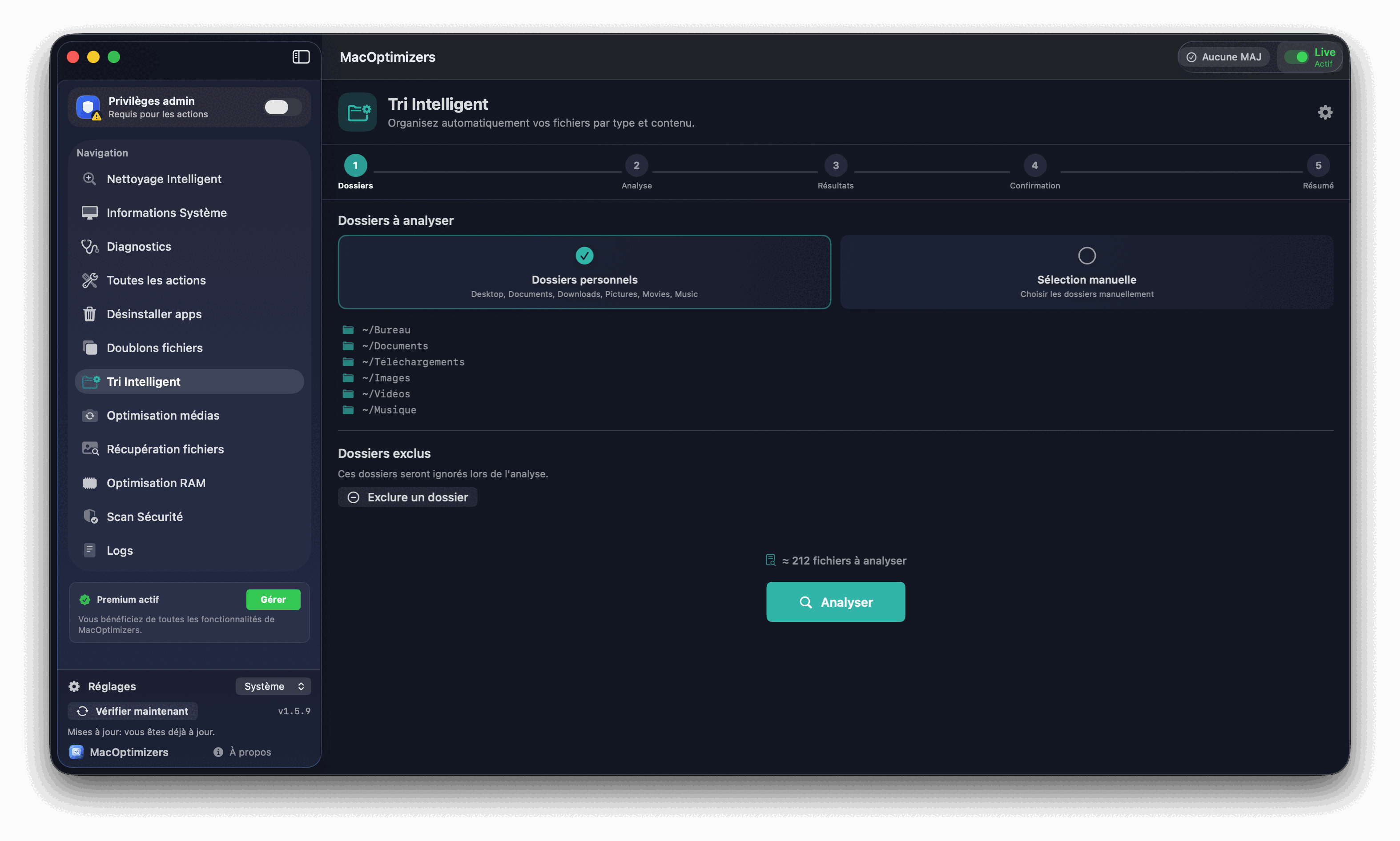
MacOptimizers deep uninstall interface

Step-by-step: fully uninstall any Mac app

  1. Quit the app and all its helper processes. Press Cmd+Q while the app is active to quit it fully. Then open Activity Monitor (Applications → Utilities) and search for the app name or developer name — some apps spawn background helpers that keep running after the main window closes.
  2. Remove the app bundle from /Applications. Drag the .app file to Trash or right-click → Move to Trash. For apps installed via the Mac App Store, use Launchpad — hold Option until the apps wiggle, then click the X badge to remove both the app and its container.
  3. Open ~/Library and look for residual folders. In Finder, hold the Option key and click the Go menu — Library appears as a hidden item. Check inside Application Support, Preferences, Caches, and Containers for any folder matching the app name or its developer. These are the four most common locations for leftover data.
  4. Check for Launch Agents. Still inside ~/Library, open the LaunchAgents folder. Look for .plist files that contain the app's name or bundle identifier in their filename. Remove these — they're startup definitions for processes that no longer exist.
  5. Check Login Items. Open System Settings → General → Login Items & Extensions. Remove any entries for the uninstalled app. Some apps register here even without a visible Launch Agent file.
  6. Empty the Trash and verify storage. Open System Settings → General → Storage after emptying Trash. If the numbers didn't move as expected, the remaining files are likely inside iCloud Drive sync folders or sandboxed containers not yet fully removed.

Apps that leave the most residues

Not every app is equally messy. These categories tend to leave behind the most data after uninstallation:

  • Creative tools (Adobe CC, Final Cut Pro, Logic Pro, DaVinci Resolve) — Application Support folders easily reach 2–10 GB, plus system-level audio plugins, camera raw profiles, and font caches.
  • Communication apps (Slack, Teams, Zoom, Discord) — message caches and media downloads accumulate to 500 MB–3 GB depending on how long the app was installed.
  • Development tools (Xcode, Docker, Android Studio) — Xcode's DerivedData alone can reach 20–50 GB; Docker keeps virtual machine disk images in ~/Library/Containers.
  • Cloud sync clients (Dropbox, OneDrive, Google Drive) — these install Launch Daemons, kernel extensions (older versions), and Application Support databases in both user and system Library folders.
  • Virtualization software (Parallels, VMware Fusion) — virtual machine disk images can be 20–80 GB each and are stored outside the app bundle, so they stay on disk completely untouched by a standard uninstall.

Using MacOptimizers to automate deep uninstall

Rather than navigating seven different Library locations manually, MacOptimizers scans all associated files for a selected app in one pass:

  • Select the app in the deep uninstall list — even previously uninstalled apps whose residues remain.
  • Review the complete list of associated files found across all Library locations before any deletion.
  • Deselect any file you want to keep (unusual, but possible for shared developer frameworks).
  • Confirm removal — all selected files move to Trash in one action.
  • Verify recovered space immediately in the app's storage summary view.

App Uninstall FAQ

Why does drag-to-Trash leave files behind?

macOS has no built-in uninstaller. Moving the .app bundle removes only that file — everything stored in ~/Library stays. It's been a Mac limitation since the beginning, and it's why residues accumulate over years of use.

How much space do residues typically take?

Creative tools (Adobe, Logic, Final Cut) leave 2–10 GB. Communication apps (Slack, Teams) accumulate 500 MB–2 GB. Small utilities leave 10–50 MB each, but hundreds of them add up fast.

Where do apps hide their data on Mac?

The main spots: ~/Library/Application Support, ~/Library/Preferences, ~/Library/Caches, ~/Library/Containers, ~/Library/LaunchAgents, and (for system-wide data) /Library/Application Support and /Library/LaunchDaemons.

Is it safe to delete all of ~/Library/Application Support?

No — only remove folders belonging to apps you've already uninstalled. Many folders there belong to apps you're still using. Delete only the specific folder matching the app you're removing.

What are Launch Agents and should I remove them?

Launch Agents are startup definitions in ~/Library/LaunchAgents. If the app they belong to is gone, macOS logs errors trying to start them at every login. Remove them as part of any complete uninstall.

Which guide should I read next?

After clearing app residues, check the free macOS cleanup guide for system caches and leftover logs that contribute to a full disk beyond just app data.

Related guides

Free macOS cleanup

Remove system caches and logs after clearing app residues.

Read

Mac disk full

Full breakdown of what else is eating your storage.

Read

Remove duplicate files

Find copies that app backups and migrations created.

Read

CleanMyMac alternative

Compare deep uninstall tools for Mac.

Read