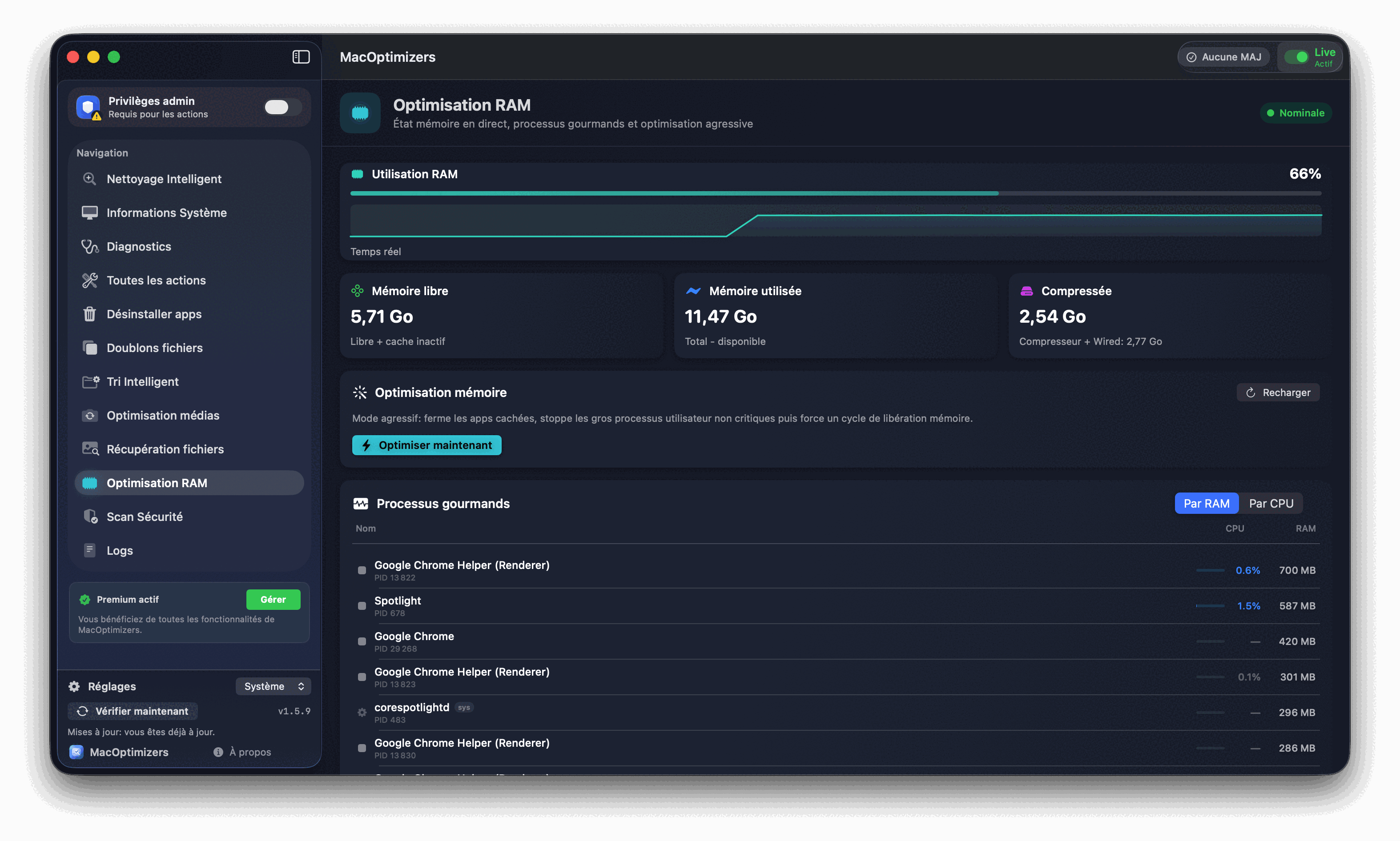
Mac memory pressure high — how to read it, reduce it, and stop it from slowing everything down
The spinning beachball, sluggish window switching, and browser tabs that need to reload when you return to them are all symptoms of memory pressure. This guide explains what the Activity Monitor pressure graph actually measures, how macOS handles memory compression and swap, which processes are the worst offenders on most Macs, and what to do about it.
Memory Pressure graph (bottom) — green: RAM is readily available. Yellow: system is compressing and occasionally swapping. Red: actively competing for RAM, performance is degraded.
App Memory — RAM used by running apps. This is the most directly controllable category.
Wired Memory — held by the macOS kernel and cannot be freed. Typically 1–3 GB on modern Macs.
Compressed — RAM stored in compressed form to delay or avoid swapping. Uses some CPU to compress/decompress but far faster than disk.
Cached Files — memory held for recently-used apps for faster relaunch. macOS releases this automatically when other apps need RAM — it's not "wasted."
Swap Used — memory spilled to SSD because physical RAM was exhausted. High swap (over 1–2 GB) consistently means memory is a genuine bottleneck.
The biggest RAM consumers on most Macs
Some apps and process categories consistently account for the majority of RAM usage on typical Macs:
Web browsers — each tab in Chrome, Edge, or Arc uses 50–300 MB depending on the page. 20 open tabs can easily consume 3–5 GB. Safari uses less RAM per tab but still adds up with many open.
Electron apps — Slack, VS Code, Discord, Notion, and similar apps are each basically a separate Chrome instance. Each can use 300 MB–1 GB individually.
Virtual machines — Parallels or VMware guests are allocated a fixed RAM block (typically 4–8 GB) that's reserved whether the VM is active or idle.
Development tools — Xcode with an open simulator, Android Studio, Docker containers. These can use 2–6 GB combined for a typical dev setup.
Creative tools — Final Cut Pro, Logic Pro, DaVinci Resolve, and Photoshop each use 1–4 GB actively and may retain memory even after closing projects.
Background helpers — every app that has a Login Item or Launch Agent uses some baseline RAM. 20 apps with background helpers can add 1–2 GB before you've opened anything.
Step-by-step: reduce memory pressure on Mac
Open Activity Monitor and find the actual offenders. Applications → Utilities → Activity Monitor → Memory tab. Sort by the Memory column. The top items in that list are the immediate targets. Don't guess — check what's actually running before making changes.
Quit apps you're not actively using. macOS doesn't automatically free an app's memory when you minimize its window or switch away. Cmd+Q actually quits; clicking the red dot just hides. For apps you opened once for a quick task, quit them fully. This is often the single most effective step.
Reduce browser tabs aggressively. Every tab is a live process. If you have 30+ tabs open as bookmarks, close them and use actual bookmarks instead. If you use Chrome, switching to Safari for everyday browsing typically saves 1–2 GB of RAM with the same number of tabs open.
Audit Login Items. System Settings → General → Login Items & Extensions. Each app listed there launches at login and holds RAM for the entire session. Remove anything you don't use daily. Some apps add helpers here without asking and never need them for normal use.
Free up SSD space. macOS uses free disk space as swap overflow. When the SSD is nearly full, swap slows to a crawl and memory pressure rises even when you have physical RAM available. Keeping at least 15% of total storage free gives the swap system room to work.
Restart the Mac periodically. macOS is designed for long uptime, but after weeks of continuous use, wired kernel memory grows, swap files accumulate, and cached memory from processes that no longer exist piles up. A full restart clears all of this in one pass. Monthly restarts are a reasonable baseline for most users.
When reducing usage isn't enough
Some memory pressure situations point to a real hardware limitation rather than a usage pattern problem:
Consistently red pressure graph even with few apps open — if Activity Monitor shows red pressure and the Memory column shows only 6–7 GB used on an 8 GB Mac, macOS itself is leaving insufficient headroom. This is a hardware limit, not a usage problem.
Swap always above 2–3 GB — chronic heavy swap usage means RAM is consistently exhausted during your normal workload. Reducing usage helps at the margins, but the real fix is more RAM or changing which apps you run simultaneously.
M-series Macs with 8 GB unified memory — the unified memory architecture (shared between CPU and GPU) is more efficient, but 8 GB is still split between both. GPU-intensive tasks (video editing, gaming, running AI models locally) pull RAM away from the CPU side and trigger pressure faster than comparable Intel workloads.
If you're consistently hitting limits on an older Mac, the macOS update slowdown guide covers how new OS versions affect RAM requirements specifically.
Mac Memory Pressure FAQ
What does Mac memory pressure mean?
It's macOS's measure of how efficiently it can serve memory requests. Green = fine. Yellow = starting to compress and swap. Red = competing for RAM actively, causing visible slowdowns.
What is compressed memory on Mac?
When RAM fills, macOS compresses inactive apps' memory instead of immediately writing to disk. It's faster than swap but uses some CPU. The Compressed figure in Activity Monitor shows how much is currently stored this way.
Is 8 GB RAM enough for macOS in 2026?
For light use: yes. For 15+ browser tabs + office apps + occasional video calls: borderline. For development, video editing, or running local AI models: no — you'll regularly hit pressure.
What is swap and why does it slow my Mac?
Swap is overflow space on the SSD used when RAM runs out. SSDs are fast, but still 5–10x slower than RAM. High swap means every access to swapped-out data causes a pause. Check 'Swap Used' in Activity Monitor — above 1–2 GB consistently is a problem.
Can I free RAM without restarting?
Yes — quit unused apps, close browser tabs, and remove Login Items. macOS releases Cached Files memory automatically. For wired memory and persistent swap, only a restart fully clears things.
Which guide should I read next?
If your Mac slowed down after a macOS update specifically, the post-update slowdown guide covers what changed in the OS itself that might explain the increased RAM usage.
Related guides
Mac slow after update
When the OS update itself is what triggered the RAM crunch.