
Performance Troubleshooting Guide

Mac slow after a macOS update — what's normal, what isn't, and what actually helps

A slower Mac in the first day or two after an update is almost always expected behavior — not a problem. But when the sluggishness lasts a week or more, something else is going on. This guide explains which post-update processes cause the slowdown, how long each one takes, and what to do when the problem doesn't resolve on its own.

What macOS does right after an update

  • Spotlight reindexing — mds_stores rebuilds the entire search index to account for new metadata formats. This runs at high CPU and can take 2–24 hours depending on how many files you have.
  • Photos analysis — photoanalysisd re-runs face recognition, object detection, and memory classification on your photo library using the updated ML models. On large libraries, this can run for 12–48 hours.
  • Font cache rebuild — macOS rebuilds font caches after system updates, which briefly slows font rendering and application launch times.
  • Dyld shared cache compilation — the dynamic linker cache that speeds up application launching gets recompiled for the new OS. This is a one-time background task that completes in minutes to hours.
  • iCloud sync burst — if iCloud Drive detects changes from the update process, it initiates a sync check that consumes network bandwidth and some CPU.
  • App compatibility checks — macOS verifies Gatekeeper signatures and notarization for installed apps against the updated security database.
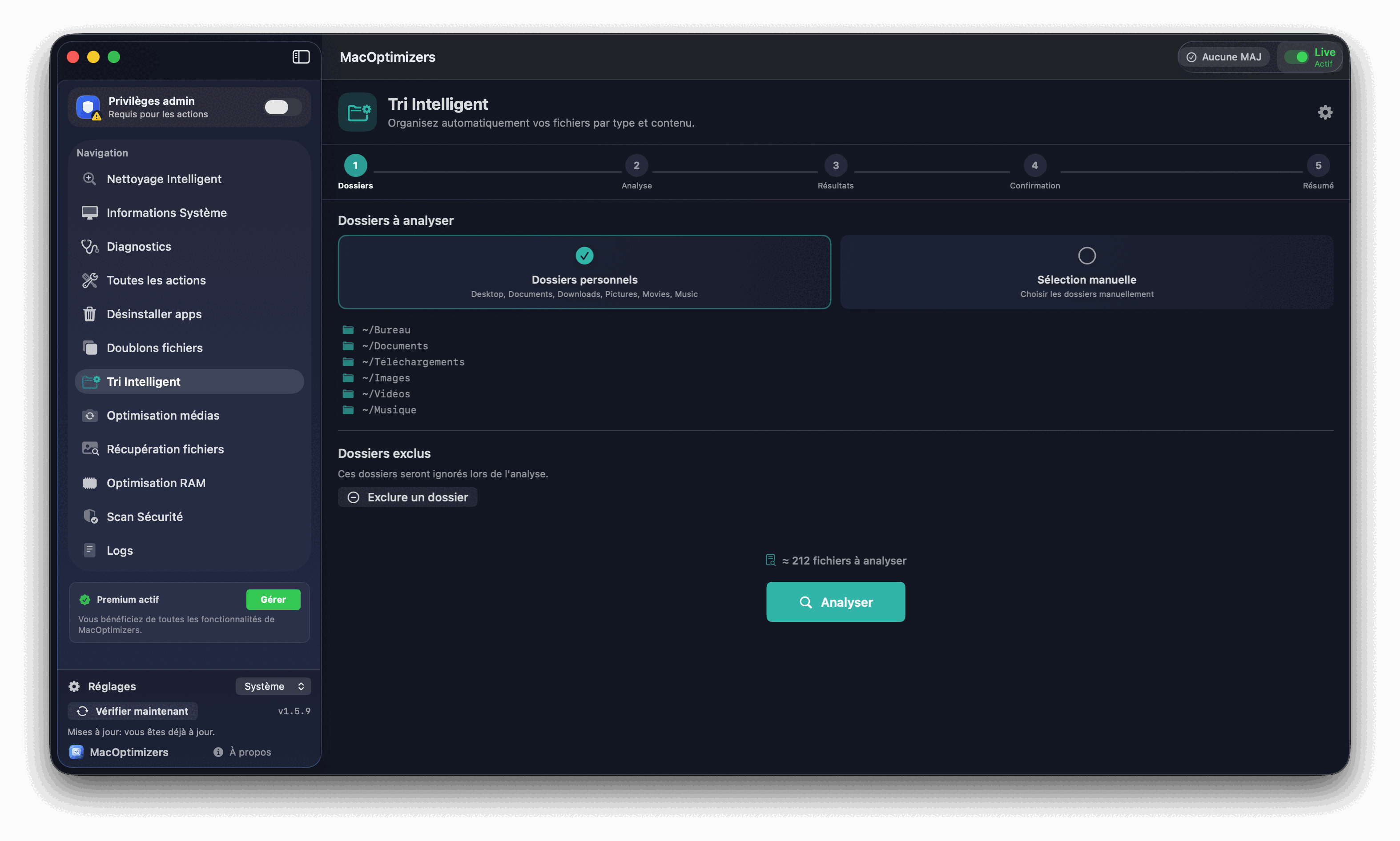
MacOptimizers diagnostic scan

Normal vs abnormal post-update slowdowns

Use this as a rough guide to decide whether to wait or to investigate:

  • Normal — resolves within 48 hours: Fan running at higher speed. High CPU from mds_stores, photoanalysisd, or corespotlightd. Slight delay opening apps for the first time. Spotlight searches temporarily slower or incomplete.
  • Normal — resolves within 72 hours on large libraries: Photos app slower to browse and load previews. Siri Suggestions less accurate. Face ID / Touch ID taking a fraction longer to respond.
  • Investigate after 3 days: All apps feel slower than before the update, not just the first launch. Browser performance noticeably degraded. Mac takes significantly longer to wake from sleep.
  • Investigate immediately: Constant fan at maximum speed with no heavy apps running. Mac too hot to touch the underside. Spinning beachball every few minutes in simple tasks. Any hardware error messages at startup.

Step-by-step: fixing a Mac that's still slow after an update

  1. Wait 24–48 hours and let background tasks finish. Open Activity Monitor and sort by CPU. If mds_stores, photoanalysisd, or Photos are at the top — that's expected. Quit-forcing these processes doesn't help; they restart immediately and begin from scratch, extending the total time.
  2. Check available storage before anything else. System Settings → General → Storage. macOS uses free SSD space as virtual memory swap and for system operations. If you're below 10% free space (roughly under 15–25 GB on a 256 GB drive), the update slowdown compounds with storage pressure. Free up space first — it has the highest impact.
  3. Clear stale caches after 48 hours. Once background tasks are complete, clearing caches from ~/Library/Caches and letting macOS rebuild them fresh for the new version often restores snappiness. MacOptimizers identifies which cache folders are largest and shows their last-modified dates so you can target the stale ones.
  4. Audit Login Items and Launch Agents. Some apps silently add entries to Login Items during an update or first launch on the new system. System Settings → General → Login Items & Extensions. Remove anything you don't recognize — a single poorly-behaved startup item can degrade general performance across the whole session.
  5. Look for incompatible third-party extensions. If you use apps with kernel extensions or system extensions (some VPNs, anti-virus tools, audio software), the update may have left the extension in a partially incompatible state. Check System Settings → Privacy & Security → Extensions. Remove any that look stale, then reinstall the app fresh from the developer.
  6. Run a full MacOptimizers diagnostic. The diagnostic checks 40+ health indicators — SSD wear level, memory pressure trends, startup agent signing status, and filesystem consistency. Post-update is one of the best times to run it, since the update process occasionally surfaces pre-existing issues that were previously hidden.

When the slowness isn't the update's fault

A macOS update often reveals underlying issues that existed before:

  • SSD nearly full — if you had 5–8% free space before the update, the update installer itself may have pushed you below the threshold macOS needs for smooth operation.
  • RAM pressure under the new OS — each major macOS version uses slightly more RAM for its own processes. A Mac that was comfortable at 8 GB RAM on Ventura may show memory pressure on Sequoia or Tahoe. Check the Memory tab in Activity Monitor — if the pressure graph is consistently yellow or red, that's your bottleneck.
  • Aging SSD with high wear — macOS updates write significant data to the SSD. If the drive was already showing high wear indicators, the update may have accelerated degradation. MacOptimizers shows SSD health via SMART data and iStats sensor readings.
  • Outdated apps not yet compatible — an app that worked fine under the old macOS may have an incompatibility with the new version that causes it to hang or use excessive resources. Check for app updates in the Mac App Store and from each developer directly.

Mac Slow After Update FAQ

How long does the post-update slowdown last?

24–48 hours for most Macs. Up to 72 hours for large photo libraries or nearly-full SSDs. If it's still slow after a week, investigate — don't wait longer.

What is mds_stores and why is it maxing out my CPU?

The Spotlight indexing daemon — it rebuilds the search index for the new macOS version. It's normal, it will finish, and force-quitting it just restarts the process from scratch.

Should I clear caches right after updating?

Wait 48 hours. Right after an update, macOS is actively building new caches. Clearing them immediately forces another rebuild and extends the slow period.

My Mac is still slow after a week — what should I check?

Check available storage (needs 10–15% free), Login Items and Launch Agents added during the update, incompatible system extensions, and memory pressure in Activity Monitor.

Can an update cause permanent slowness?

On older Intel Macs (5+ years old), a major version update can raise resource requirements enough that performance doesn't fully return. Apple Silicon handles new versions better, but hardware age still matters.

Related guides

Mac memory pressure

Reduce RAM usage when the update reveals a shortage.

Read

Mac disk full

Free storage when the update needs more space.

Read

Free macOS cleanup

Clear caches and logs after the update settles.

Read

Mac Diagnostics

Run a full health check after a major update.

Read